Always-On Display
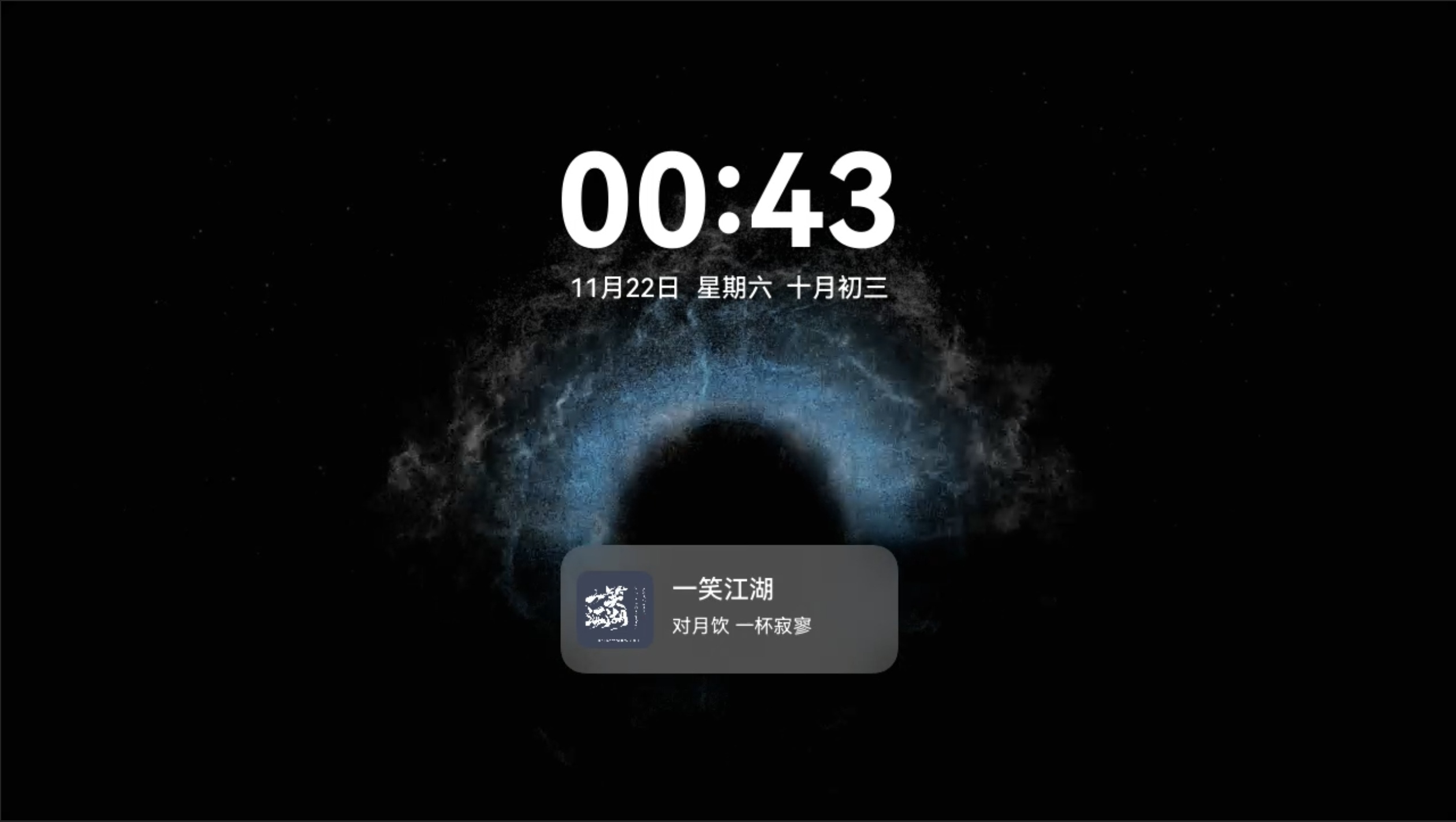
Next HiCar supports changing the always-on display, showing a simple date and time on the vehicle interface.
Entering/Exiting Always-On Display
After connecting to Next HiCar, you can tap the "Always-On Display" icon in the DOCK area to enter always-on display mode. Tap it again to exit always-on display mode.
Changing Always-On Display Wallpaper
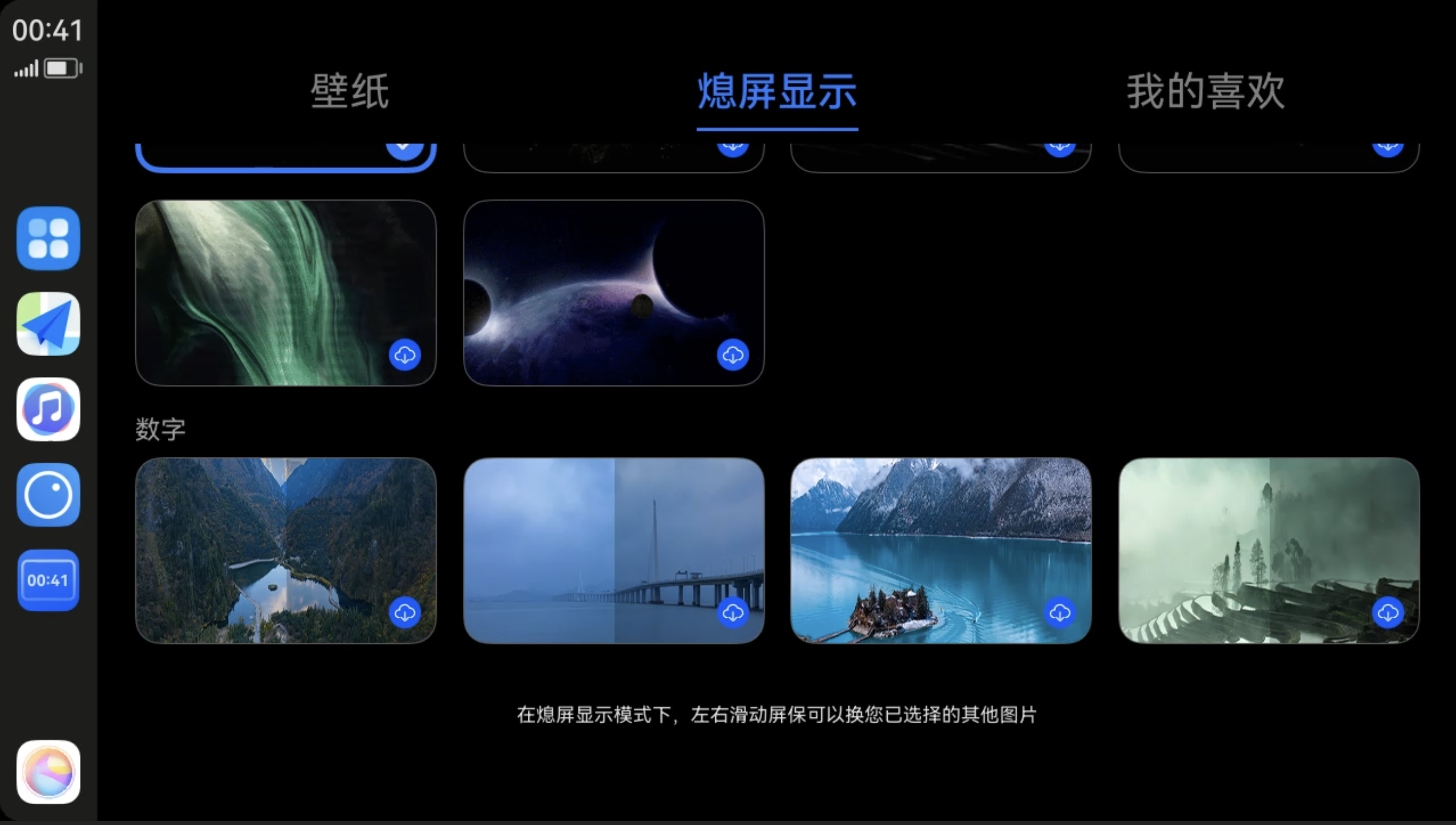
Next HiCar supports changing the desktop wallpaper. After connecting to Next HiCar, tap the first icon at the top of the DOCK area to switch to the app desktop, then enter "Themes" and switch to the "Always-On Display" tab to select the interface effect for the always-on display.