Wireless Connection
Next HiCar supports wireless connections and strongly recommends that all devices accessing Next HiCar be able to use it wirelessly. However, due to hardware limitations, some phones and vehicle models may not support wireless Next HiCar connections.
Prerequisites
Your phone supports Next HiCar and wireless connections. Only a small number of phones do not support Next HiCar wireless connections and only support wired connections. You can check phone compatibility here: HiCar Supported Phones.
Your vehicle model supports HiCar and wireless connections. The vast majority of HiCar-compatible devices support wireless connections; only a few original and aftermarket head units only support wired connections.
- For original and aftermarket head unit compatibility, you can check here: HiCar Supported Models.
- For connectivity box solutions, you can check the product sales page. Currently, almost all box solutions support wireless connections, and most support connecting via QR code scanning.
PIN Code Connection Steps
These steps apply to most scenarios where the original car supports HiCar.
Swipe down from the top of your phone screen to open the Control Center (if your phone runs HarmonyOS, swipe down from the top right side of the screen), and turn on Bluetooth.
Tap the HUAWEI HiCar icon on the vehicle screen or long-press the voice button on the steering wheel.
 tip
tipSome vehicle models do not support long-pressing the voice button; please refer to actual support.
Bring your phone close to the center console screen and select "Connect" in the pop-up.
Enter the connection code on your phone and tap "OK".
When prompted "Allow auto-connect HiCar", it is recommended to select "Allow".
QR Code Connection Steps
These steps apply to most scenarios where a box solution is used with Next HiCar.
Tap the CarPlay or CarLife icon on the vehicle screen (depending on your box type) or long-press the voice button on the steering wheel. Under normal circumstances, a QR code will then be displayed on the vehicle screen.
Swipe to the negative one screen on your phone, select the scan icon, and scan the QR code displayed on the vehicle screen.
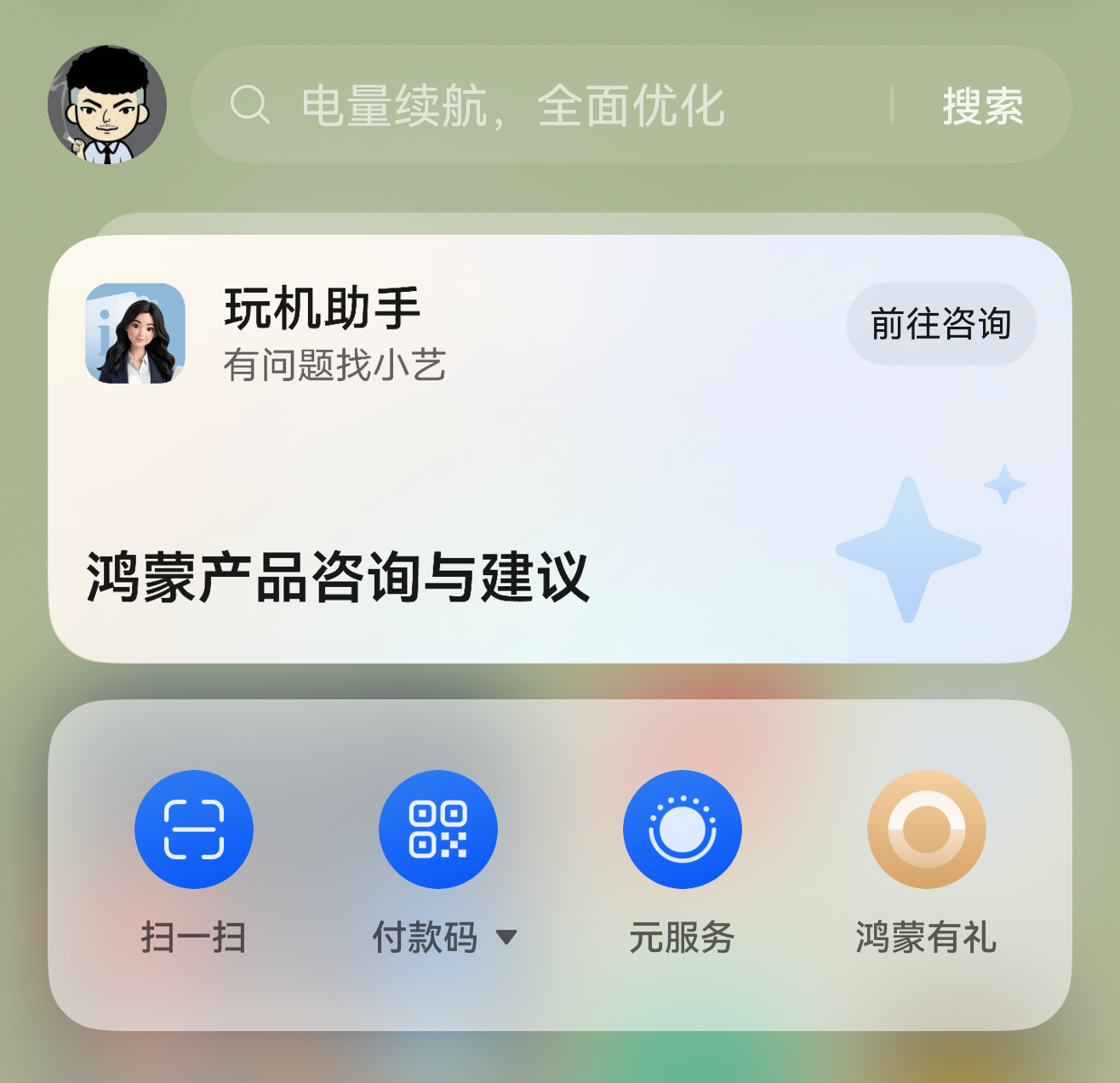
Select "Connect" in the pop-up.
When prompted "Allow auto-connect HiCar", it is recommended to select "Allow".