Trackpad
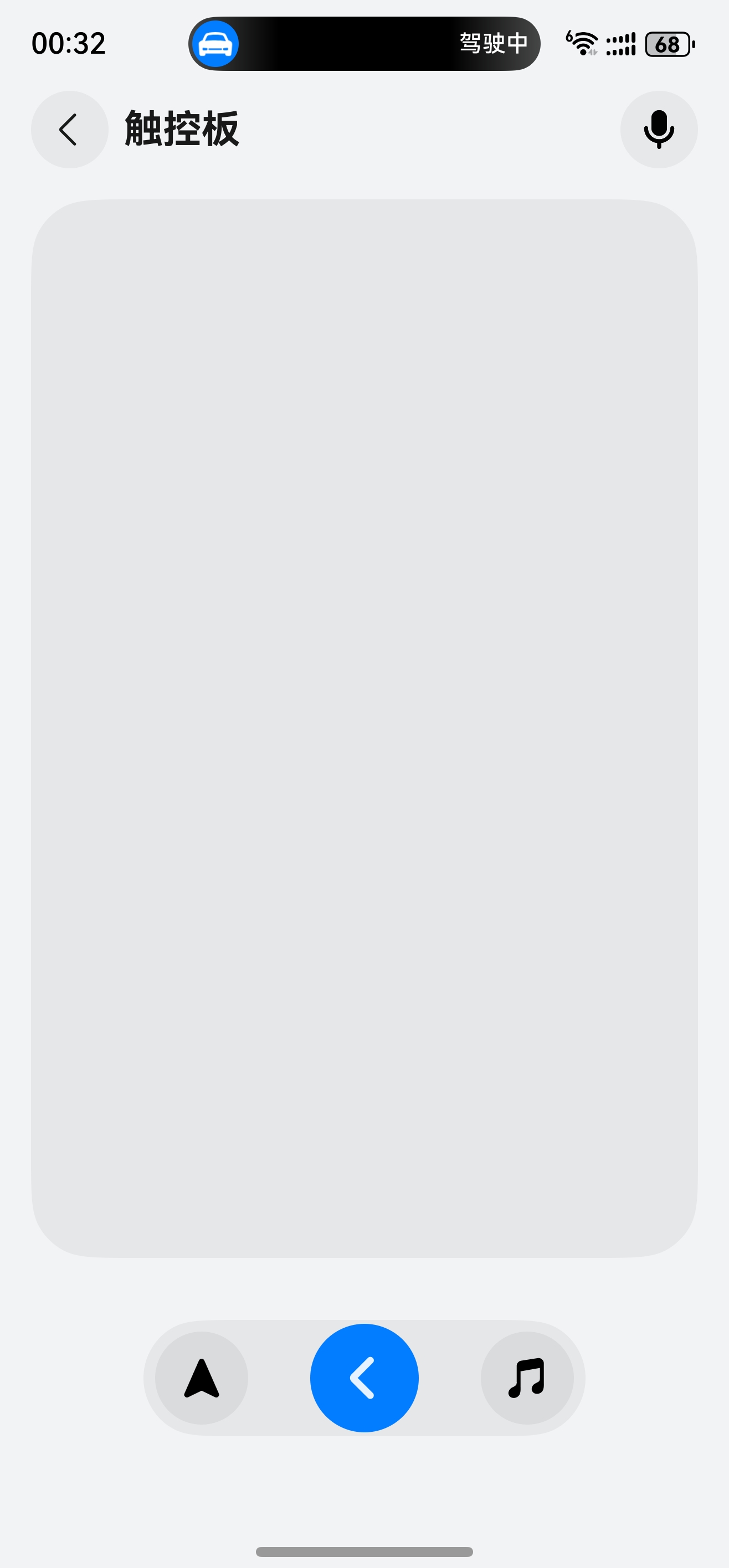
When you enable the driving mode feature on your phone while connected to Next HiCar, the driving mode interface will change to look like the HiCar remote control shown below.
This feature is especially useful for Next HiCar users whose vehicle side does not have a touchscreen.
Entering the Trackpad
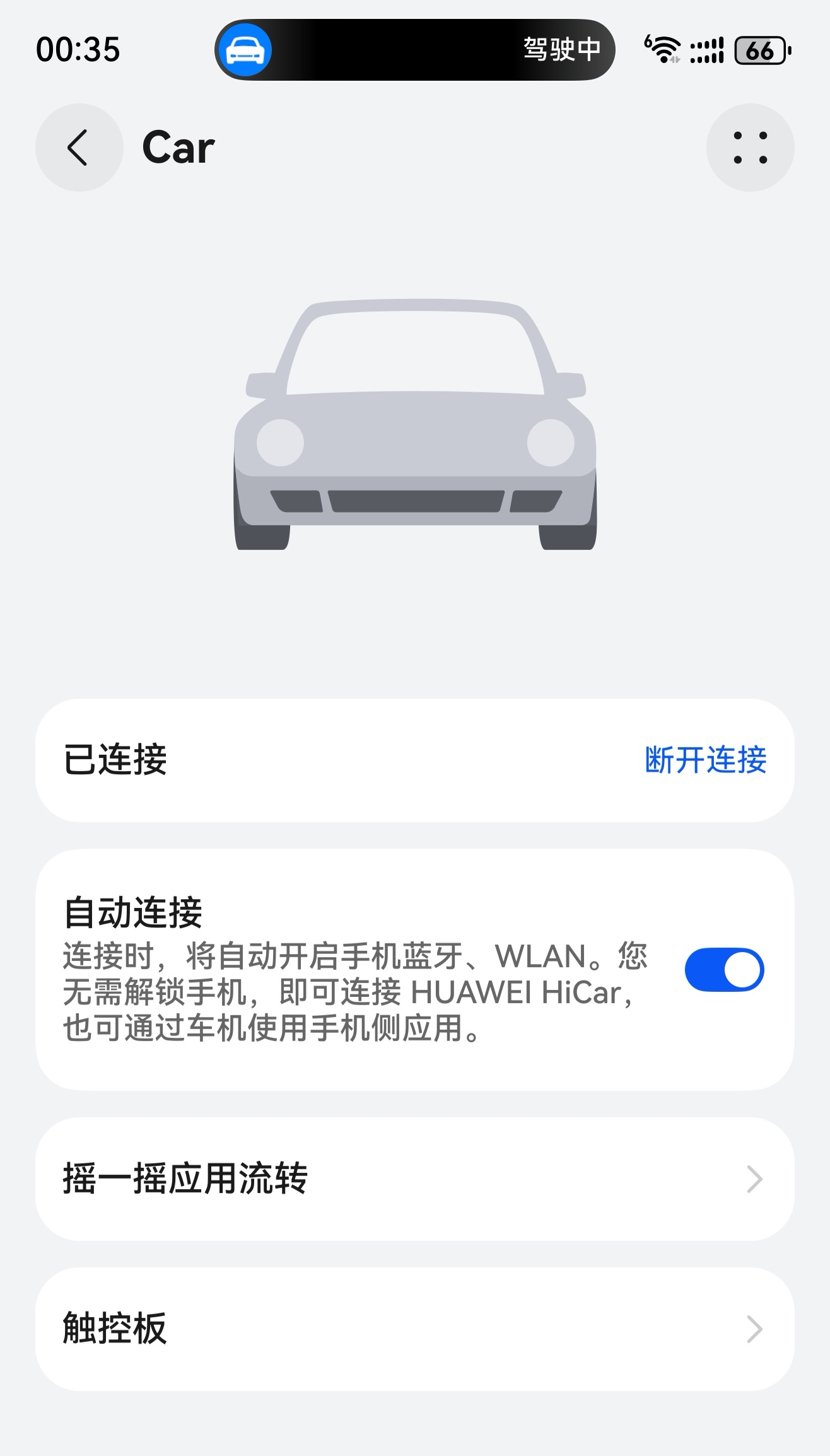
While connected to Next HiCar, select the connected device and tap "Trackpad".
Trackpad Functions
With the trackpad, you can:
- Direct Navigation: The first button in the bottom button bar — tap to directly enter the map app.
- Direct Music: The third button in the bottom button bar — tap to directly enter the audio app.
- Back: The second button in the bottom button bar — tap to go back one step.
- Wake Up Voice: The microphone icon in the upper-right corner — tap to wake up the smart voice assistant.
- Touch Operations: Swipe and tap in the blank area to perform corresponding operations on the vehicle screen.