HiCar Control of Vehicle Aromatherapy
HiCar currently supports controlling aftermarket in-vehicle devices, including a vehicle aromatherapy diffuser. After connecting HiCar, an aromatherapy control card will appear in the HiCar interface, allowing you to control the diffuser's power and scent mode.
Demonstration
Preparation
Currently, HiCar only supports one smart vehicle aromatherapy diffuser from Xiang Bainian. So the main preparation before starting is:
Purchase a HiCar-compatible smart vehicle aromatherapy diffuser. You can find the link to this diffuser in the "Accessories" menu at the top of this site.
This diffuser offers multiple scent options. If purchasing, we recommend the wind chime scent.
Binding the Aromatherapy Diffuser to the Smart Life App
This Xiang Bainian smart vehicle aromatherapy diffuser supports HarmonyOS Connect (formerly HiLink). Devices that support HarmonyOS Connect can be bound to Huawei's Smart Life app, where you can control the bound device.
HiCar integrates with the Smart Life app and has specifically adapted for this diffuser, enabling control of the smart vehicle aromatherapy diffuser. Therefore, to control the diffuser via HiCar, you first need to bind the diffuser to the Smart Life app.
The specific binding steps are detailed in the purchased diffuser's instruction manual. Here we briefly outline the key points.
Ensure Bluetooth is enabled on your phone, then power on the smart vehicle aromatherapy diffuser.
When first powered on, the diffuser defaults to network configuration mode. If unsure, press and hold the diffuser power button for 10 seconds until you hear a beep to re-enter network configuration mode.
Open the Smart Life app. If a device is discovered, follow the prompts to add it. If no automatic popup appears, tap the + icon in the top right corner to add a device and manually scan.
Follow the Smart Life app prompts step by step to bind the diffuser.
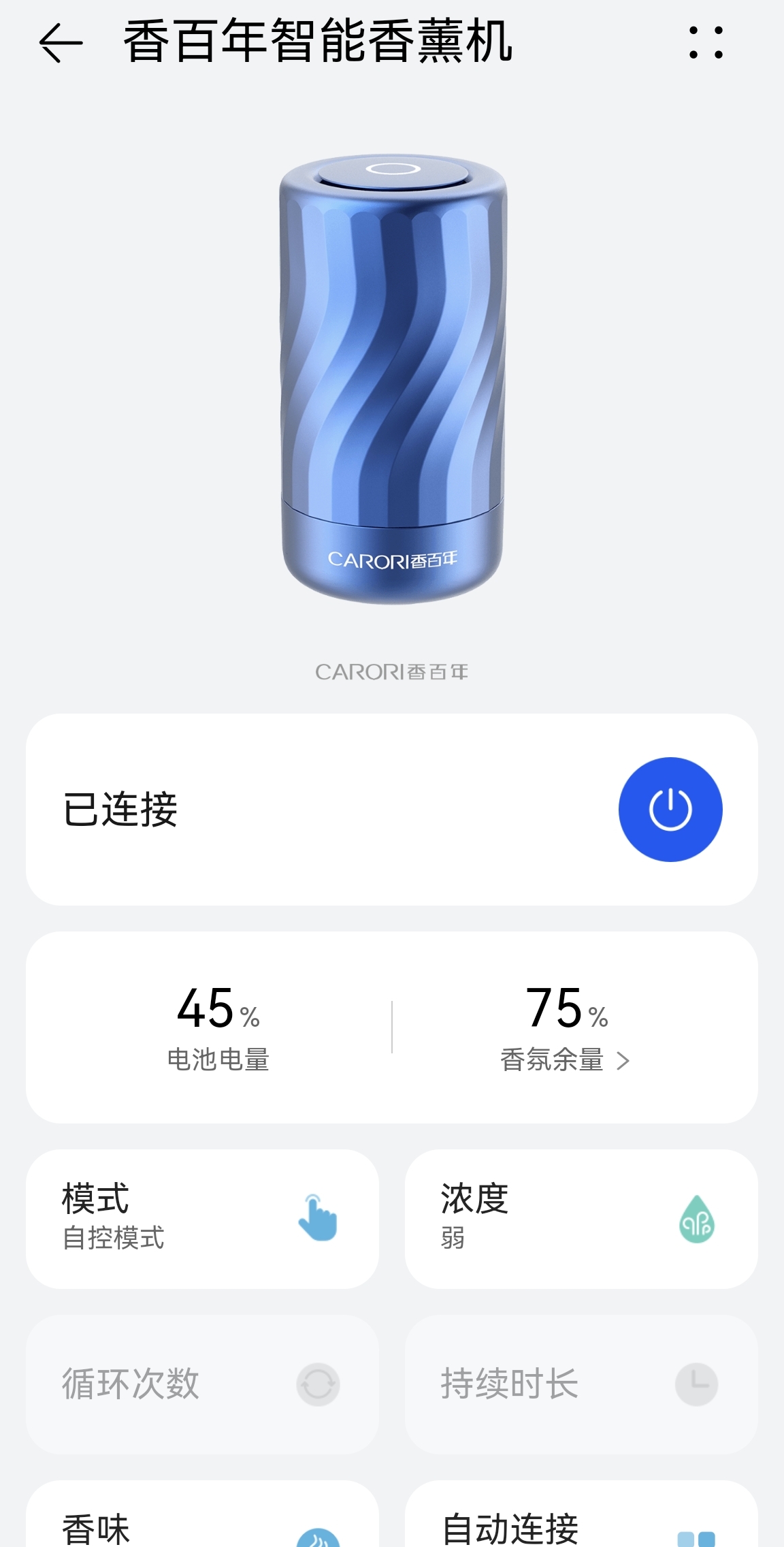
The device binding experience in the Smart Life app may not be optimal, and connection failures are common. If it fails, please try several more times. When retrying, you can press and hold the diffuser power button for more than 10 seconds to make it re-enter network configuration mode.
Displaying the IoT Control Card
By default, HiCar does not show the aromatherapy card. You need to enable this switch yourself. The steps are as follows:
Connect HiCar, go to "Settings > Desktop > Card Management".
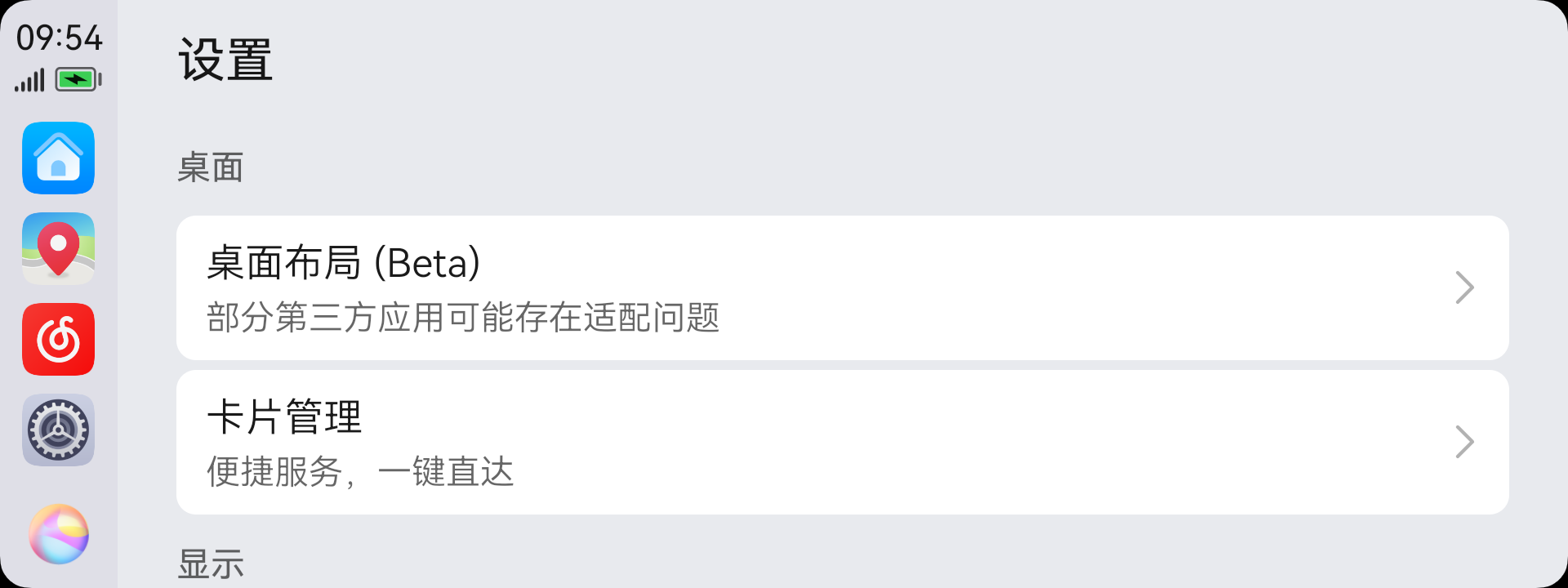
Set "IoT Device" to the selected state.
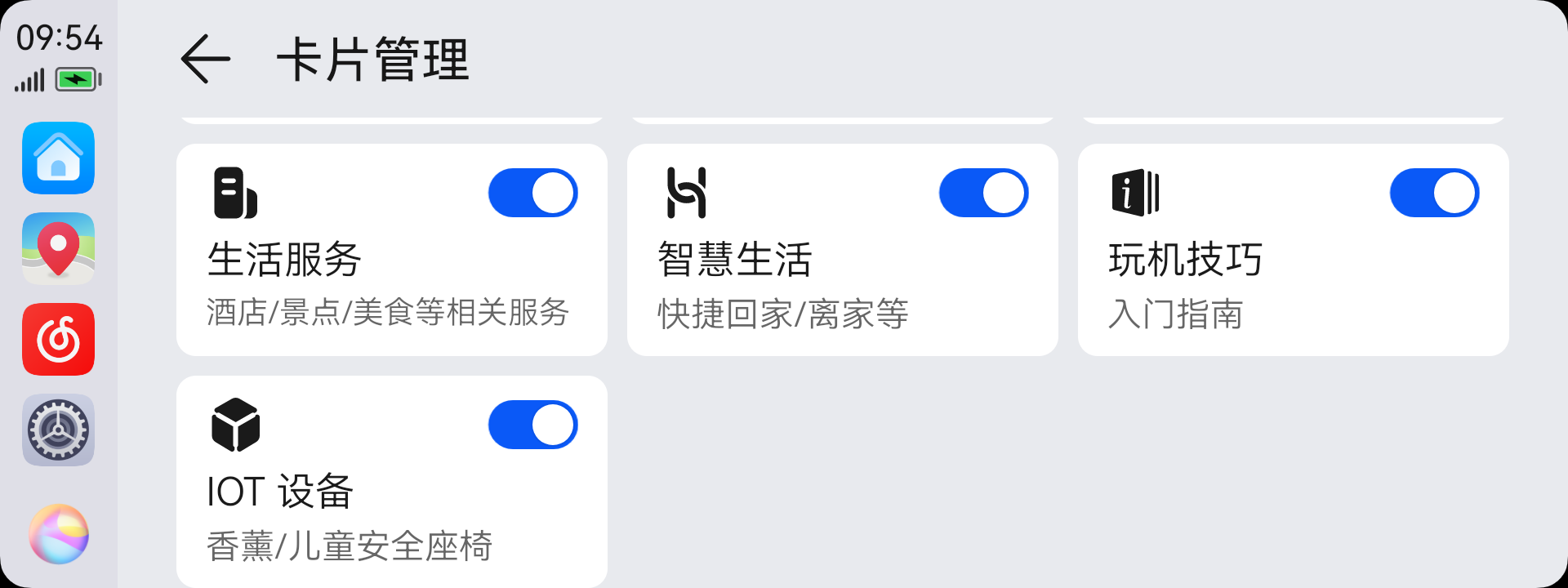
This will make the aromatherapy card appear in the HiCar interface.
Controlling the Aromatherapy Diffuser in HiCar
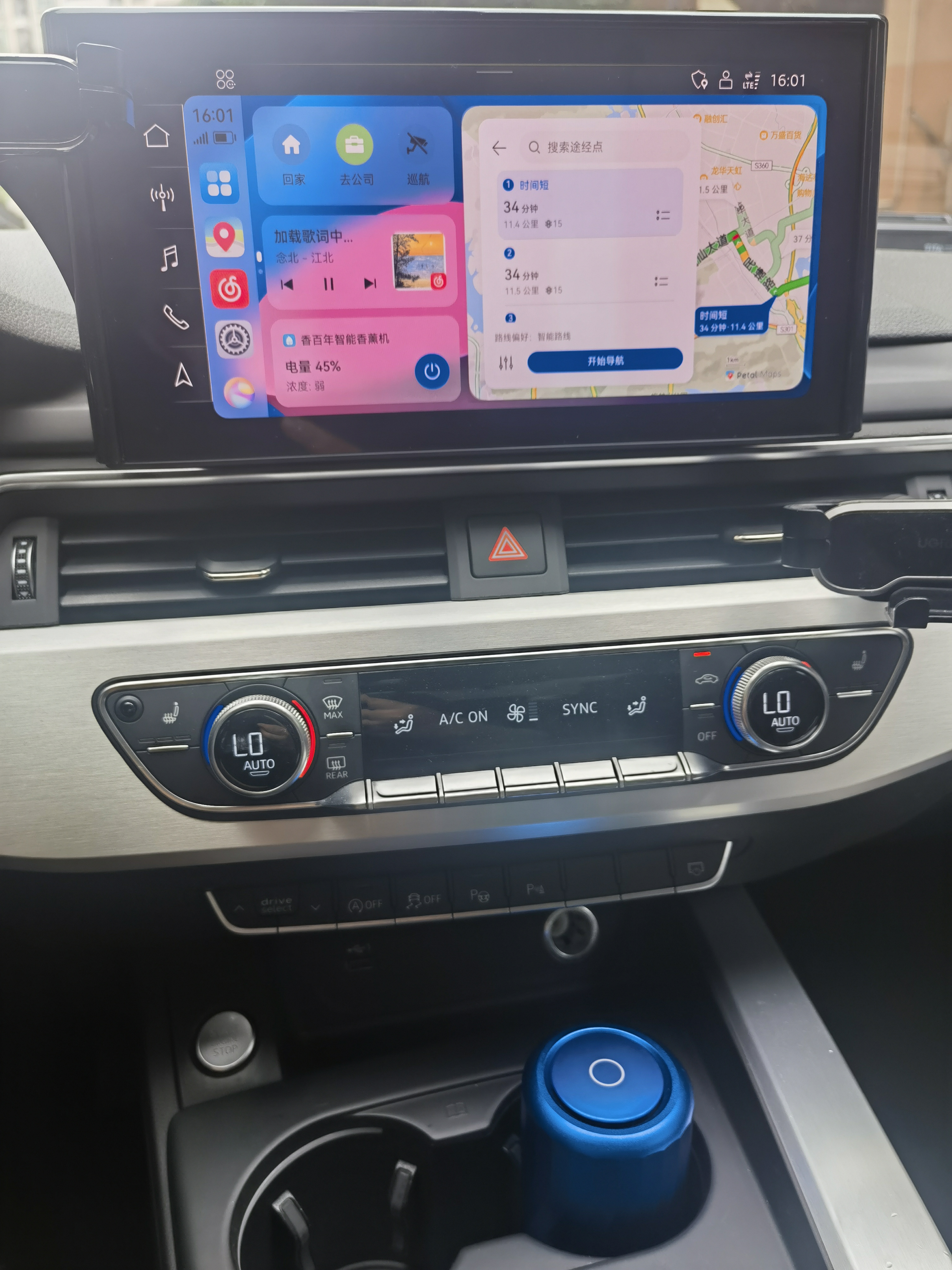
After connecting HiCar, the smart aromatherapy diffuser control card will appear in the HiCar interface.
The card displays the current battery level and concentration setting of the diffuser, and provides a quick button to power the diffuser on/off.
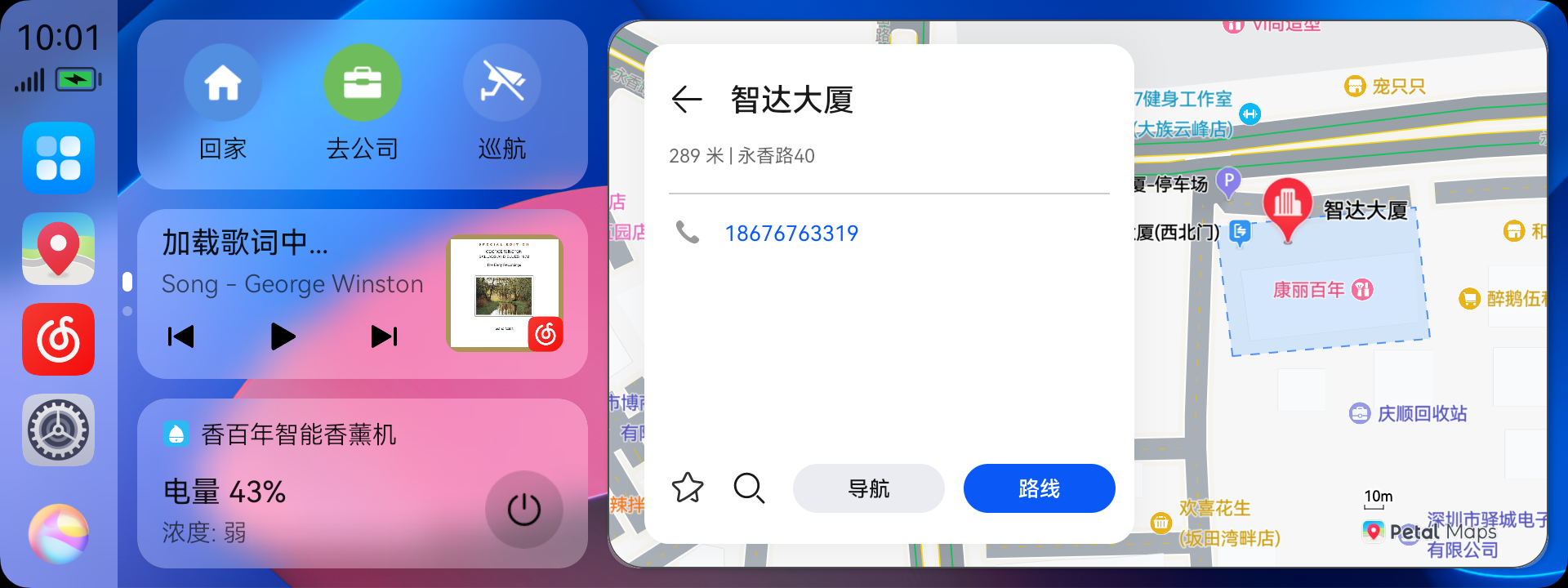
Tap the smart aromatherapy diffuser control card to enter the detailed settings interface for the diffuser.
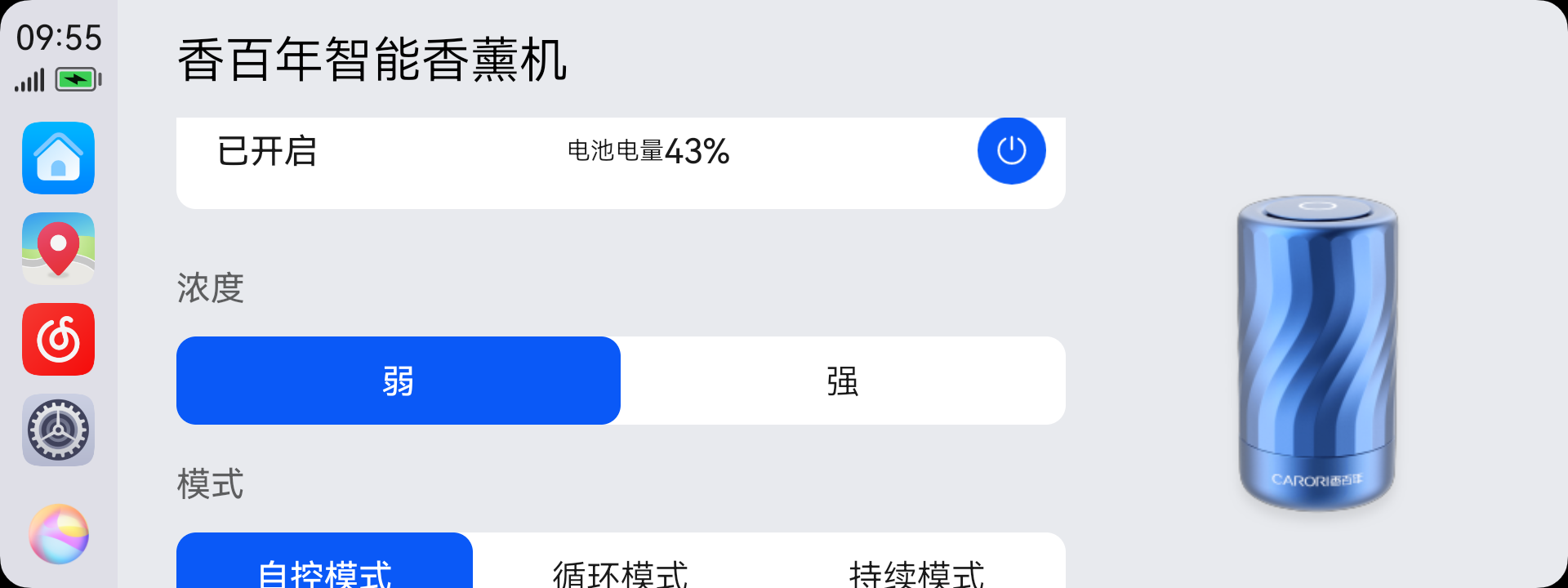
In this interface, you can configure:
- Power the diffuser on/off.
- Scent concentration: Low or High.
- Scent modes:
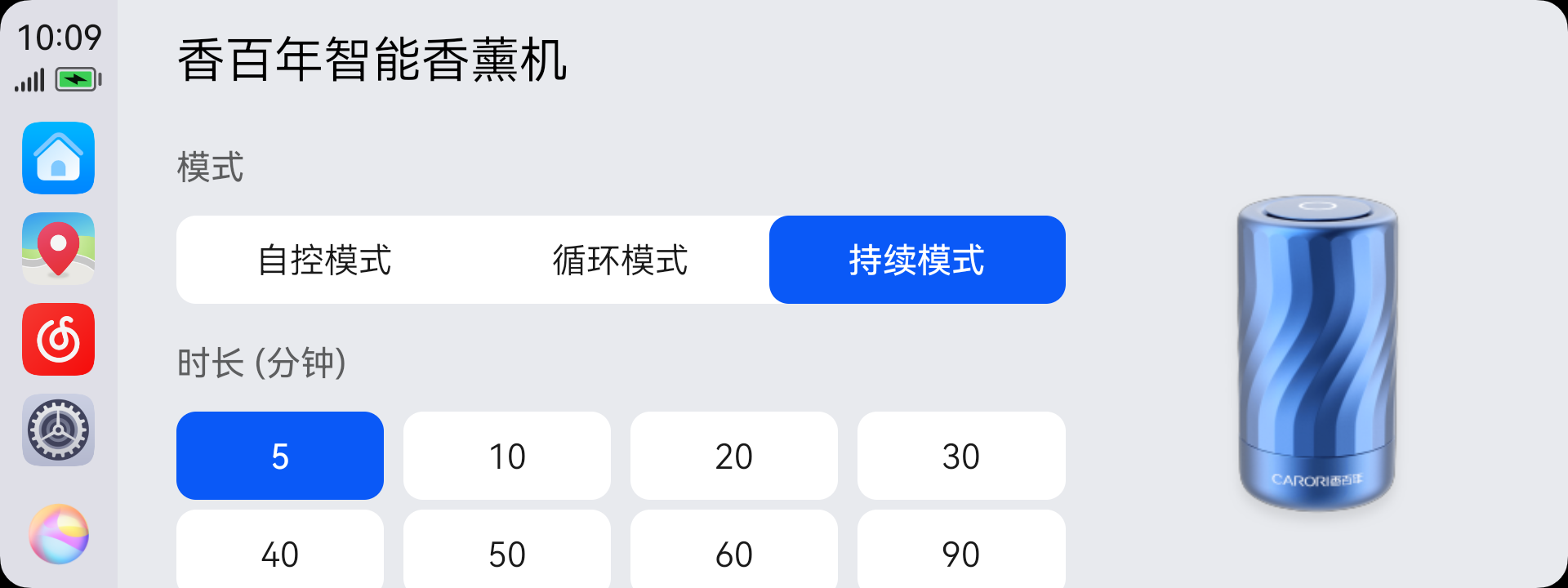
- Auto mode: The diffuser automatically controls, turning off after a few minutes of scent release.
- Cycle mode: Set the number of scent release cycles before auto power-off.
- Continuous mode: Set the duration of continuous scent release before auto power-off.